Introduction
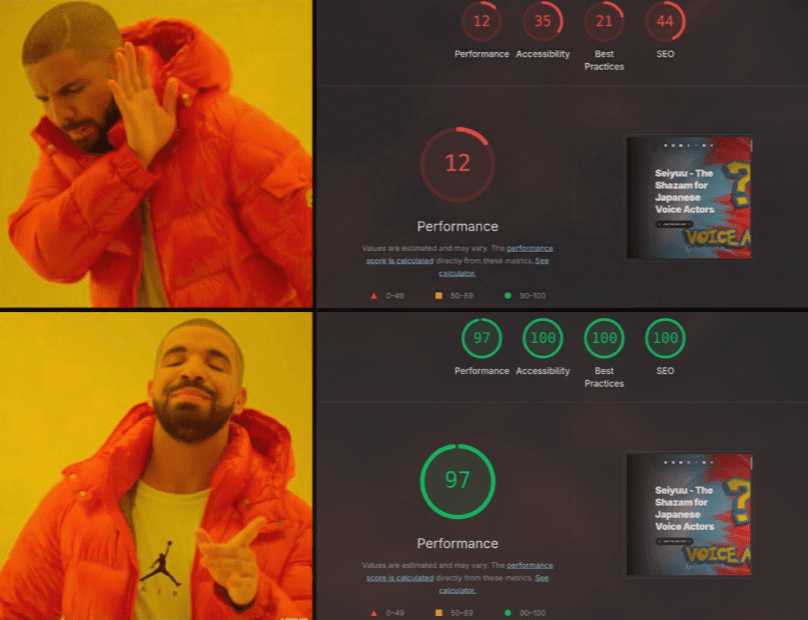
Core Web Vitals are more than just vanity metrics. They are Google's way of quantifying user experience - measuring how fast your page loads (LCP), how quickly it responds to interaction (INP), and how visually stable it is (CLS). In this blog, I'll break down exactly how I took my site from "needs improvement" to a 100 (96) Performance score and 100 across Accessibility, Best Practices, and SEO on Lighthouse - mostly by shaving off unused JavaScript and optimizing media assets.
Why Core Web Vitals Matter
-
Search Engine Ranking (SEO) Google explicitly uses Core Web Vitals as a ranking factor. A site that loads instantly and doesn't shift around while reading is favored in search results - ensuring my content actually reaches people.
-
User Retention Studies show that conversion rates drop significantly with every second of load time delay. By optimizing LCP (Largest Contentful Paint), I ensure visitors don't bounce before the hero section even renders.
-
Accessibility & Inclusivity Web performance is an accessibility issue. Users on slower devices or poor networks shouldn't be penalized. A lightweight site respects the user's data plan and device constraints.
How I Optimized My Site
Crushing the Video Payload
My biggest bottleneck was a 2.6MB background video. I used ffmpeg to compress it to under 1MB using the H.264 codec and removed the audio track since it was just visual candy - this significantly improved my LCP.
# Example command to remove audio (-an) and compress
ffmpeg -i input.mp4 -vcodec libx264 -crf 28 -an output.mp4
Killing Legacy JavaScript
Lighthouse flagged "Legacy JavaScript" as a major bloat. I realized my browserslist was too broad, forcing Next.js to ship polyfills for ancient browsers like IE11. By targeting modern browsers (chrome >= 100, not ie 11), I saved ~13KB of unnecessary script on the initial load.
// package.json
"browserslist": [
    "chrome >= 100",
    "firefox >= 100",
    "safari >= 15",
    "edge >= 100",
    "not ie 11"
]
Aggressive Tree Shaking
I was shipping unused code from heavy libraries like framer-motion and react-icons. I added optimizePackageImports to my next.config.ts, ensuring that only the specific icons and animation features I used made it into the final bundle.
// next.config.ts
const nextConfig = {
  experimental: {
    optimizePackageImports: ['framer-motion', 'react-icons'],
  },
}
Fixing Forced Reflows
I had a scroll listener in my "Back to Top" button that was reading window dimensions on every pixel of movement. This caused layout thrashing. I wrapped the logic in requestAnimationFrame to sync updates with the browser's refresh rate, eliminating the jank.
// Optimized scroll handler
const handleScroll = () => {
  requestAnimationFrame(() => {
    if (window.scrollY > 300) {
      setShowButton(true);
    } else {
      setShowButton(false);
    }
  });
};
Accessibility is Performance
Achieving a 100 Accessibility score wasn't just about screen readers. Adding aria-labels to icon-only buttons and ensuring correct contrast ratios helped structure the DOM better - giving me a perfect score across the board.
The Results
-
Performance: 100 (96)/100 The page now loads almost instantly, with a Speed Index of 0.6s and a Total Blocking Time of just 20ms.
-
Accessibility: 100/100 Every interactive element is labeled, colors are distinct, and the site is fully navigable via keyboard.
-
SEO: 100/100 With proper meta tags, a valid
robots.txt, and structured JSON-LD schema, the site is primed for search engines.
// app/robots.ts
User-Agent: *
Allow: /

Sitemap: https://seiyuu-app.vercel.app/sitemap.xml
I also leveraged Next.js Metadata API to auto-generate tags based on my constants:
// app/layout.tsx (Metadata Configuration)
export const metadataConfig: Metadata = {
    metadataBase: new URL(process.env.NEXT_PUBLIC_APP_URL ?? ""),
    title: {
        default: "Seiyuu",
        template: "Seiyuu | %s",
    },
    description:
        "The Shazam for Anime. Instantly identify Japanese voice actors (Seiyuu) using AI voice recognition...",
    keywords: [
        "Shazam for Seiyuu",
        "AI Voice Detection",
        ...VOICE_ACTORS.flatMap((actor) => [actor.name, ...actor.roles]),
    ],
    robots: {
        index: true,
        follow: true,
        googleBot: {
            index: true,
            follow: true,
            "max-video-preview": -1,
            "max-image-preview": "large",
            "max-snippet": -1,
        },
    },
};
And finally, injecting JSON-LD for rich results:
// components/SEOConfig.tsx
const SEOConfig = () => {
    const appSchema = {
        "@context": "https://schema.org",
        "@type": "SoftwareApplication",
        name: "Seiyuu",
        headline: "Shazam for Japanese Voice Actors",
        applicationCategory: "EntertainmentApplication",
        operatingSystem: "Web, iOS, Android",
    };

    return (
        <>
            <script
                type="application/ld+json"
                dangerouslySetInnerHTML={{ __html: JSON.stringify(appSchema) }}
            />
        </>
    );
};
Conclusion
Optimizing for Core Web Vitals is an iterative process. It requires looking at the network tab, analyzing build bundles, and making tough decisions about what assets are truly necessary. By focusing on the basics - media compression, modern build targets, and clean code - I was able to build a site that feels as good as it looks.
Want to see the speed in action (of course you do)? Check out the live site here